Alertify MCP: How to Connect Your Alertify Dashboard to Claude, ChatGPT, and Gemini (beta)
Alertify offers an MCP (Model Context Protocol) server that lets AI assistants read your account data directly. Once connected, you can ask questions in plain language such as "which of my devices are offline?" or "show me noise incidents at Ocean View Suite 3 in the last month" and get answers pulled live from your Alertify account.
This guide covers Claude, ChatGPT, and Gemini. Jump to the section for the assistant you use.
Before you start
You will need:
An active Alertify account with at least one registered device
The Alertify MCP server URL: https://ai.alertify.dev/mcp
A desktop or laptop browser. None of these can be set up from a mobile app
What is MCP? It is an open standard that lets AI assistants connect to external tools and data. When you add the Alertify connector, the assistant sends requests to our server and receives your account data in return. Nothing is installed on your computer.
Authentication. The Alertify MCP endpoint uses OAuth. When you connect, you will be sent to a browser page to approve access. Some clients also require an MCP token, which you can generate from the MCP Clients tab in your Alertify dashboard.
Claude
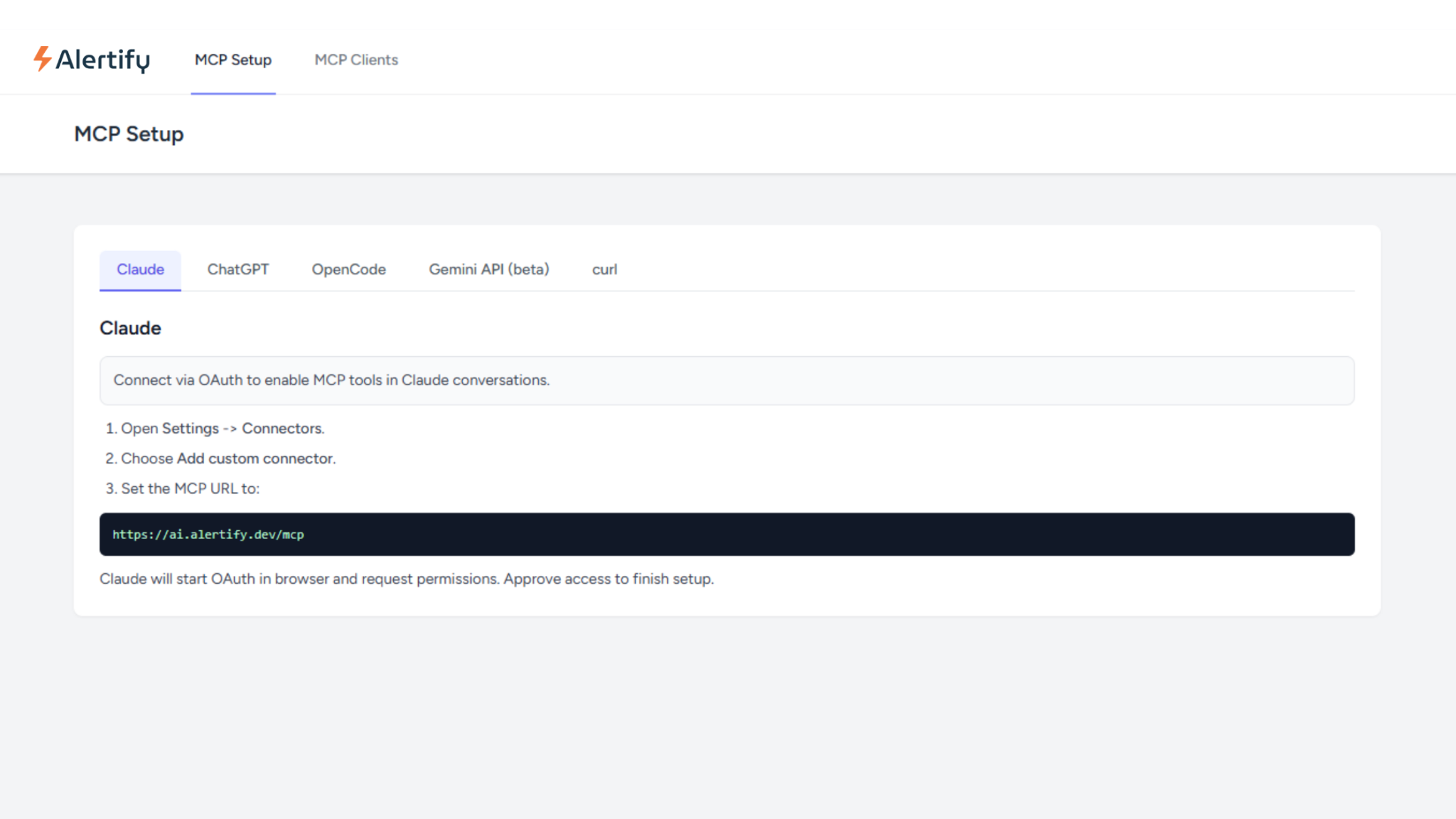
Step 1: Add the connector
Open Claude in a web browser and sign in
Go to Settings, then Connectors
Choose Add custom connector
Set the MCP URL to:
Click Add
Step 2: Complete authentication
Click “Connect” and Claude will open an OAuth flow in your browser and request permissions. Approve access to finish setup.
If you are prompted for an MCP token, generate one from the MCP Clients tab on ai.alertify.dev/ and paste it in when asked.
Step 3: Turn it on in a conversation
The connector is not automatically active in your chats. In any conversation, click the + icon near the message box, find Alertify in the connectors list, and switch it on.
Step 4: Test it
Ask something simple:
Which of my Alertify devices are currently online?
Claude will show the tool call it is making and return your device list.
Plan requirements
Custom connectors work on Free, Pro, Max, Team, and Enterprise plans. Free accounts are limited to one custom connector total.
On Team and Enterprise plans, an Owner or Primary Owner must add the connector at organisation level first, under Organization settings, then Connectors. Individual members cannot add it themselves, and the option will not appear until an owner has done this.
Mobile
Connectors added on the web work in the Claude iOS and Android apps. New connectors cannot be added from mobile, so do the initial setup on a computer.
ChatGPT
ChatGPT support requires Developer Mode, which is off by default. There is also an ordering requirement around desktop and web that causes most setup failures.
Important: read before you start
Add and authorise this connector from ChatGPT Web first.
Do not start the first OAuth link from ChatGPT Desktop. It can fail with the error "OAuth link must be completed from the original device."
Best practice is to keep ChatGPT Desktop closed during the first connection. Open Desktop only after the web version shows the connector as connected.
Developer Mode must stay ON to create, select, or use this connector in ChatGPT conversations. Turning it off later will disable the connector.
Step 1: Enable Developer Mode
Go to Settings, then Apps, then Advanced, and switch on Developer Mode.
Step 2: Create the connector
In ChatGPT Web, go to Settings, then Apps, then Create to add a new connector.
Fill in the connector details:
Name: Alertify MCP
Base URL: https://ai.alertify.dev/mcp
Auth: OAuth
Step 3: Save and authorise
Save the connector, then complete the OAuth flow in the same browser session and tab context. Switching tabs or devices mid-flow will cause it to fail.
Step 4: Test it
Using the Alertify MCP connector, which of my devices are currently online?
Naming the connector explicitly helps. ChatGPT sometimes reaches for its built-in tools unless you point it at the right one.
Plan requirements
Developer Mode is available on Plus, Pro, Business, Enterprise, and Education accounts, on the web only. Free accounts cannot add custom connectors.
On Business, Enterprise, and Education workspaces, an admin controls this in workspace settings. If the Developer Mode toggle is missing on one of these plans, it is usually workspace policy rather than a fault.
Gemini (beta)
Gemini MCP support is beta and experimental. Alertify connects to Gemini through the Gemini API and SDK, not through the Gemini app's connector interface. This is a developer path.
If you are looking to use Alertify inside the consumer Gemini app, that is not currently supported. Use Claude or ChatGPT instead.
Known limitations
Remote MCP uses Streamable HTTP. SSE is not supported.
Some Gemini model families and flows do not support remote MCP yet.
Authentication behaviour depends on the MCP server. The Alertify endpoint uses OAuth.
Step 1: Use the right interface
Use Gemini API Interactions or SDK MCP support. The Gemini app connector UI will not work with this endpoint.
Step 2: Point at the Alertify endpoint
Step 3: Declare the remote MCP tool
Example tool declaration:
{
"type": "mcp_server",
"name": "alertify",
"url": "https://ai.alertify.dev/mcp"
}
Pass this alongside any other tools your agent uses.
If a model does not work
Because remote MCP support varies by model family, if your calls fail silently or the tool is never invoked, try a different model before assuming the connection is broken.
Other Clients
The MCP Setup page in your Alertify dashboard also includes tabs for:
OpenCode, for use in that development environment
curl, for testing the endpoint directly or building your own integration
Both follow the same OAuth authentication as the clients above.
What you can ask once connected
"Which of my Alertify devices are currently offline?"
"Were there any noise violations at my properties in the last 30 days?"
"Put together a report of all smoking events that happened across my 4 units"
"Show me the humidity readings for Unit 4B over the past week"
"What are the alert thresholds set for noise on this property?"
Be specific about property or device names where you can. Assistants work better with a clear target than a broad request.
Security and privacy
The MCP connection lets your AI assistant read data from your Alertify account, including device status, sensor readings, incident history, and property settings. Each platform will show you the specific tools available and ask you to authorise access via OAuth.
All three platforms note that custom connectors link to services they have not independently verified. This is standard for any MCP server, including ours. Connections are made from the AI provider's cloud infrastructure to Alertify's servers over HTTPS.
You can disconnect at any time from the connector settings on your chosen platform, which immediately revokes access. You can also revoke tokens from the MCP Clients tab in your Alertify dashboard.
If your organisation has data handling requirements, review the connection with your IT or compliance team before setting it up.
Need help?
If you are having trouble, contact us at [email protected] with your account email and the platform you are trying to connect with. Screenshots of any error message help us diagnose faster.